How to Do the Viral Vintage Photo Edit AI Trend on Your Phone
Learn exactly how to recreate those trending 90s yearbook and retro film photos using simple AI prompts directly on your phone.
 DevForge Studio
7 min read
You've probably seen those retro 1990s yearbook photos or cinematic 1970s film edits all over your feeds. Figuring out how to do the viral vintage photo edit AI trend on your phone is actually pretty simple. You don't need expensive software or a closet full of old clothes. Just a few taps get the job done.
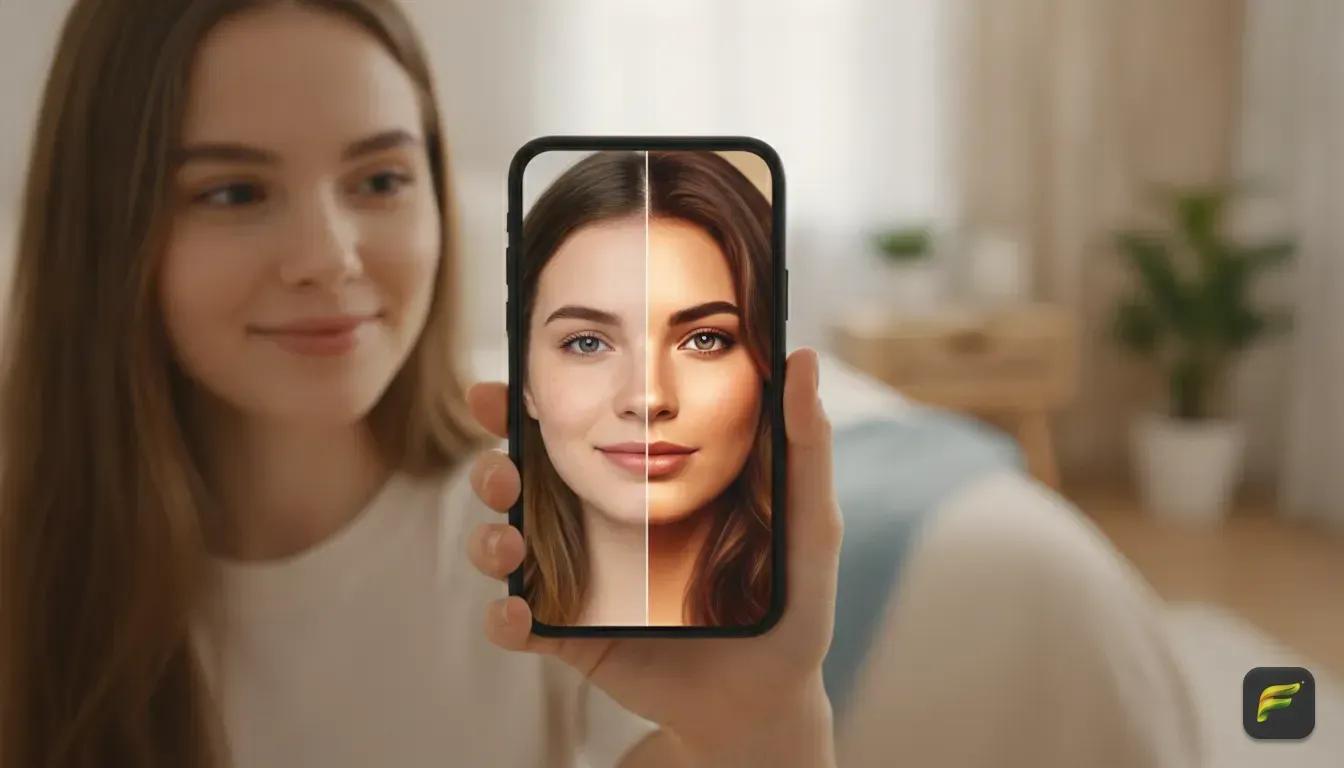
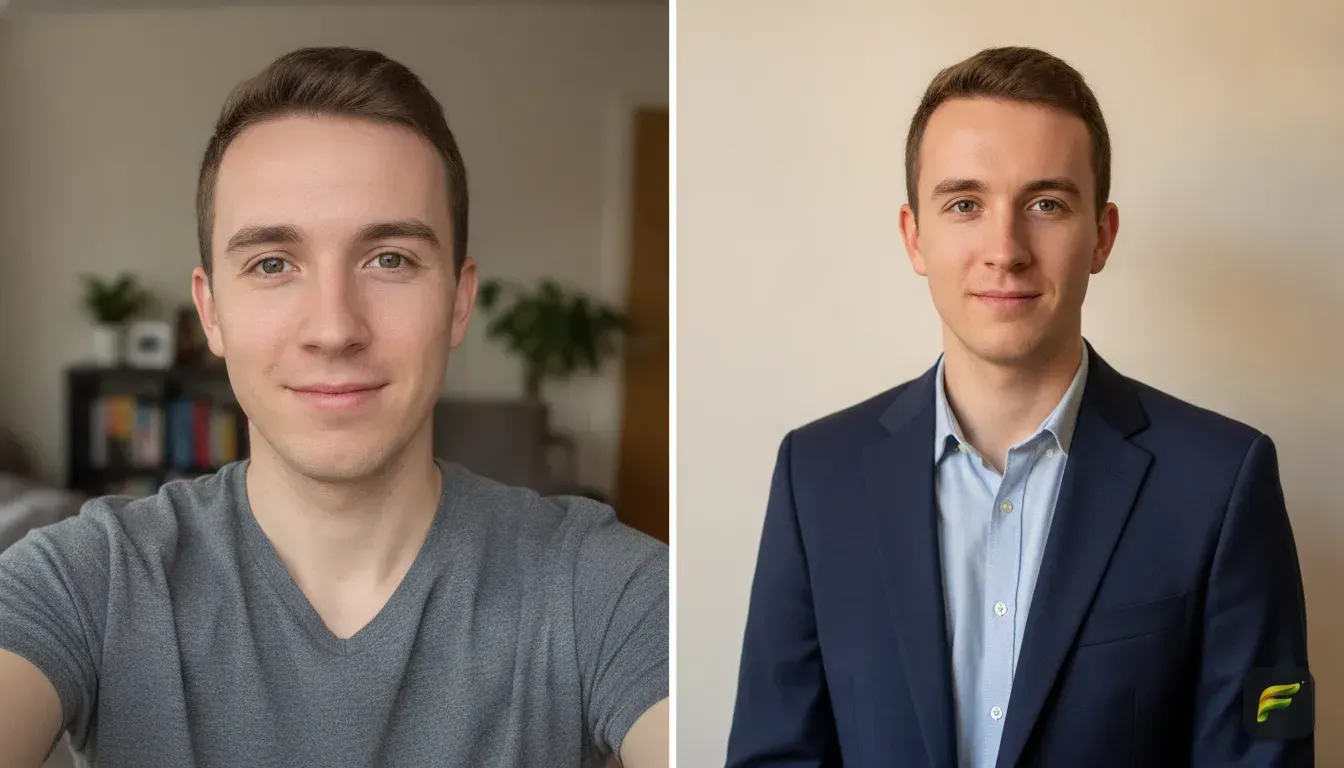
All you need is a clear selfie, an AI photo app, and a text prompt or pre-made template. The AI does the heavy lifting. It changes your outfit and adds those nostalgic film effects while keeping your face looking totally natural.
We test these tools constantly in the studio. We'll walk through exactly how to recreate these cinematic looks for your own profiles. From picking the perfect base photo to the exact text prompts we use, here is your complete guide.
What is the vintage AI photo trend?
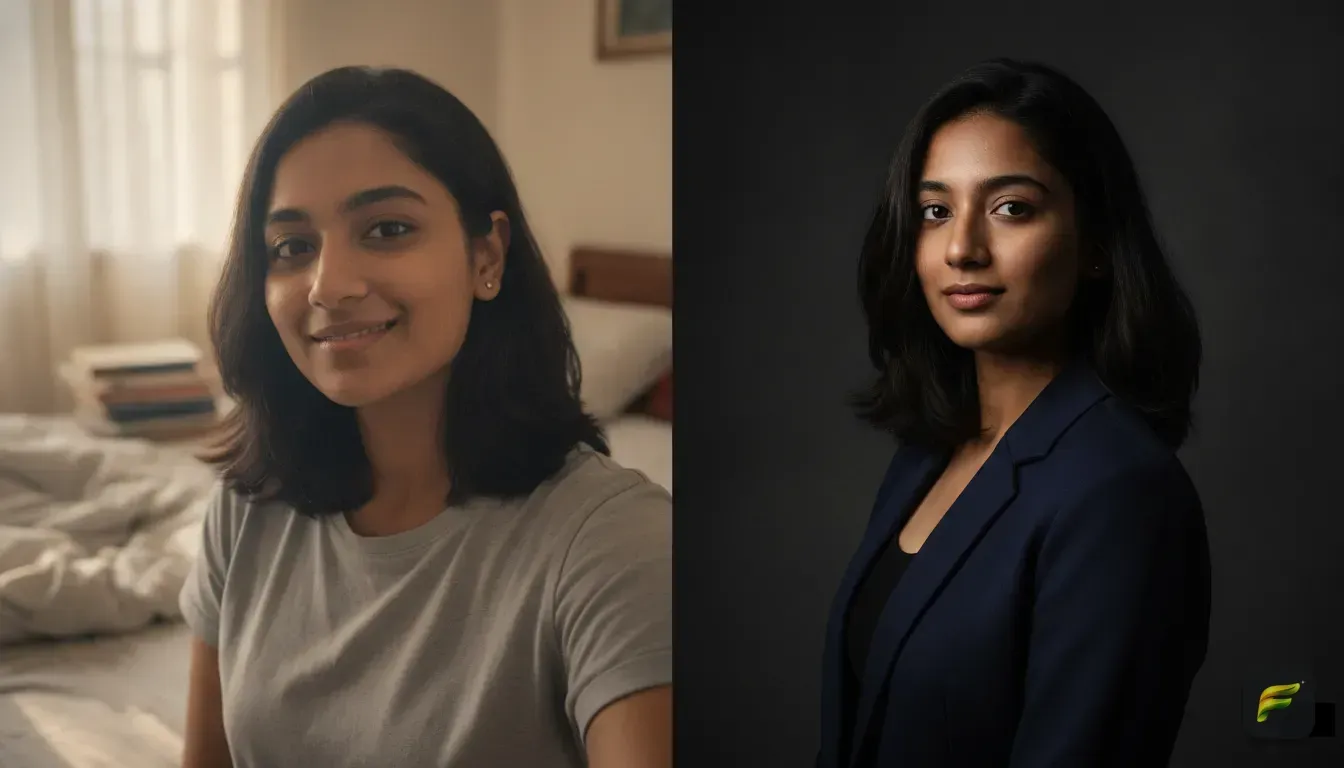
This trend takes a standard modern selfie and uses AI to turn it into a portrait from a different decade. Creators place themselves into 1990s yearbook portraits, 1970s polaroids, old Bollywood posters, and black-and-white studio shots. It feels like magic.
The appeal is massive because it's just fun to see an alternate universe version of yourself. You get to try on vintage fashion and retro hair without buying anything. Plus, the film grain and warm tones make for highly engaging content.
Forget manually pasting your head onto different bodies using complicated software. Modern apps handle the entire transformation in seconds. You type what you want to see, and the tech blends your facial features into the retro environment.
How to choose the perfect photo for the best AI edit
Before you type a prompt, you have to start with a good base photo. The AI needs a solid foundation. If you upload a blurry or dark photo, you'll get a messy result. Here is how to set yourself up for success.
Rules for your base photo
- Find clear, even lighting: Face a window or a ring light. The AI needs to see your facial features clearly. Avoid heavy shadows across your face or standing with your back to the sun.
- No group shots: Use a photo where you are the only person in the frame. AI editors get confused by multiple faces. This often results in weirdly blended features.
- Keep your face fully visible: Avoid wearing sunglasses or resting your hands on your chin. The less obstructed your face is, the better the portrait turns out.
- Look straight ahead: A slight angle is fine, but looking directly at the camera works best. If you need more guidance, read our guide on 5 AI Photo Editing Prompts That Keep Your Face Natural to ensure the final image actually looks like you.
Step-by-step: How to do the vintage photo edit on your phone
Getting that viral edit takes less than a minute once you know the right steps. Here is exactly how we transform modern selfies into vintage shots.
Step 1: Get a dedicated AI photo editor
You need an app designed specifically for generative photo editing. We built Fotorra AI exactly for this to keep your face intact while changing your vibe. It processes everything privately. Your uploads are only used for your edit and are never saved to train other models.
Step 2: Upload your base selfie
Open the app and upload that clear photo you just took. Make sure your head and shoulders are clearly visible in the crop.
Step 3: Choose a vintage template
If you want a one-tap fix, look through the curated templates. In Fotorra, scroll to templates like 'Cinematic studio' or 'Paris Afternoon'. These apply a moody vibe instantly without any typing.
Step 4: Write a custom prompt for a specific decade
Sometimes you want a specific 1980s neon arcade look or a 1970s library aesthetic. You can use the custom prompt feature for this. Describe the era, clothes, lighting, and background in your own words.
Step 5: Save and share
Once the app generates your new retro portrait, save it directly to your device. You're ready to use it for your next reel or profile picture.
The secret to realistic retro lighting in AI prompts
The words you choose for custom prompts matter a lot. Typing "make this photo look old" just gives you a cheap sepia filter. It always looks fake.
To get a true vintage aesthetic, use real photography terms. This forces the AI to recreate the look of old film. Here are the magic keywords we use in our own prompts.
- Film grain: Adds that textured, slightly fuzzy look that old printed photos have.
- Light leaks: Creates cool red and orange streaks. This mimics real film exposed to sunlight.
- Polaroid style: Gives the image a washed-out, high-contrast flash look typical of the 70s and 80s.
- 35mm film camera: Tells the AI to use the color grading of classic vintage cameras.
- Golden hour lighting: Adds a warm yellow glow to the entire scene.
5 custom prompts you can copy for the perfect retro look
If you prefer writing your own prompts over using templates, we've done the hard work for you. Here are five exact descriptions you can copy and paste into your AI editor.
1. The 90s Yearbook Star
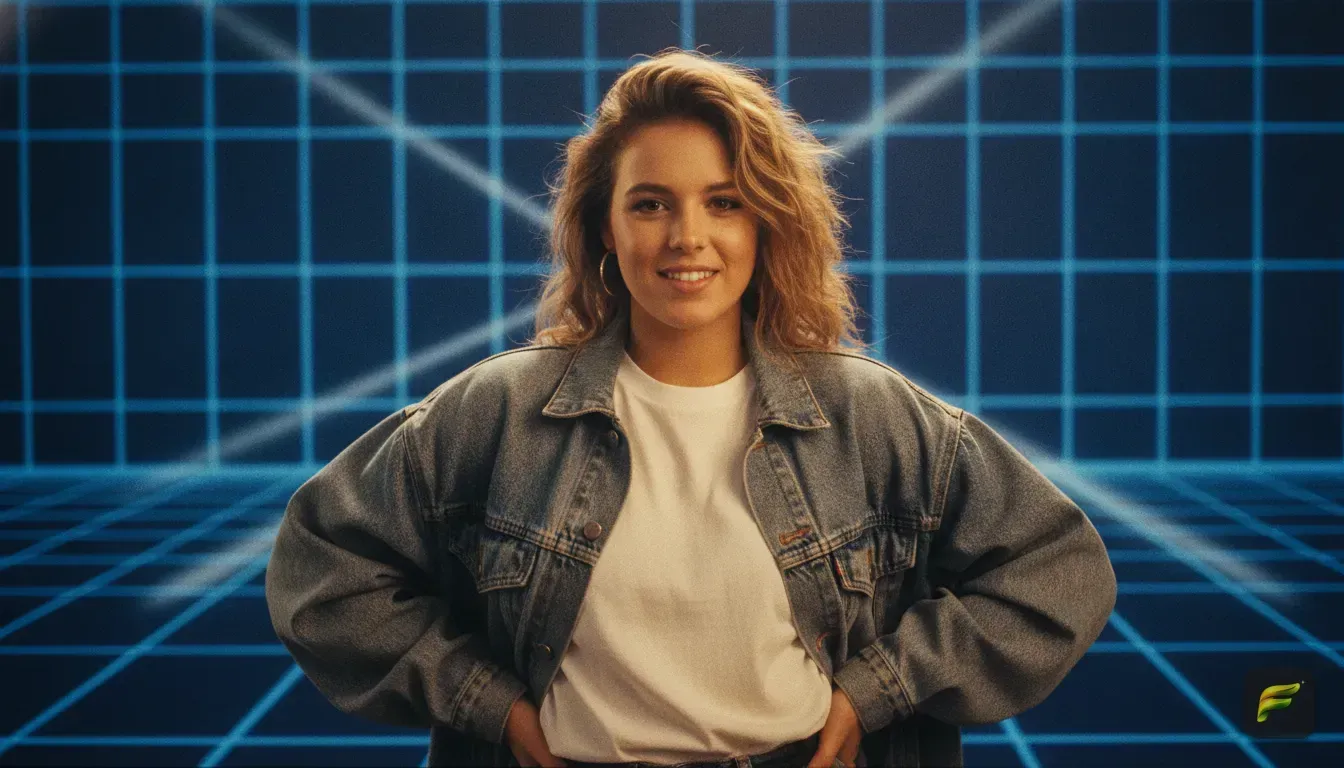
"A 1990s high school yearbook portrait, wearing a vintage oversized denim jacket over a white t-shirt, feathered retro hairstyle, posing against a laser blue background, shot on a vintage film camera, soft studio lighting, slight film grain."
2. The 1970s Old Money Aesthetic
"A vintage 1970s cinematic portrait, wearing a beige turtleneck and tweed blazer, sitting in a classic wooden library, warm golden hour lighting coming through the window, muted retro film colors, 35mm photography."
3. The Classic Bollywood Golden Era
"A 1960s vintage cinematic portrait, wearing an elegant silk saree, traditional light jewellery, dramatic vintage studio lighting, soft focus lens, high contrast black and white film photography."
4. The 80s Arcade Glow
"A 1980s retro aesthetic photo, wearing a bright neon windbreaker jacket, standing in a dark arcade illuminated by glowing pink and blue neon lights, polaroid camera flash style, heavy film grain."
5. The 1950s Hollywood Star
"A glamorous 1950s classic studio portrait, wearing a tailored dark suit, dramatic shadows, vintage spotlight lighting on the face, sharp focus, rich sepia tone, old Hollywood aesthetic."
Common mistakes to avoid when using AI photo styles
Even with the best apps, things go wrong if you aren't careful. Don't ruin your post by making these simple errors.
First, don't use heavily filtered photos as your base image. The AI needs your raw, unfiltered face. If you upload a selfie with an Instagram smoothing filter, the result will look plastic and fake.
Second, avoid writing short prompts. Typing "vintage outfit" just isn't enough information. You need to name the exact decade, the clothing, and the lighting style. The more descriptive you are, the better the final image looks.
Finally, never ignore the background. A perfectly styled 1970s outfit looks ridiculous if the AI leaves your modern messy bedroom behind you. Always specify the setting in your text prompt. Try using terms like "vintage photo studio", "retro diner", or "classic wooden library".
Where to post your new aesthetic photo edits
Once you have your retro photos saved, it's time to put them to work. These cinematic styles grab attention on almost every platform.
Instagram Reels and TikTok are the best places for these edits. Start by showing your normal selfie for two seconds. Then snap to a quick slideshow of your retro edits timed to a nostalgic audio track.
They also make incredible profile pictures. Swapping your basic selfie for a cinematic portrait refreshes your page fast. People definitely double-take when they see you looking like a 1990s movie star. For more ideas, check out our list of the Best AI Photo Templates for Instagram Profile Pictures.
You can even use these photos for your dating apps to show off a creative side. They also work great as custom covers for nostalgic Spotify playlists.
Ready to try your own vintage transformation?
Now you know how to do the viral vintage photo edit AI trend on your phone. All you need is a few free minutes. Grab your favorite well-lit selfie, open your AI editor, and start experimenting.
Try mixing up prompts to match your personal style. You might find you look amazing in an oversized 90s sweater. Generate a few options and pick the edit that feels the most like you. You'll be amazed at how quickly you can create amazing content without ever stepping foot inside a real photo studio.
Frequently asked questions
What app is everyone using for the vintage photo trend?
Creators use various AI photo editors to get this look. Apps with custom prompt features and curated templates make it easy to generate 90s yearbook or retro film styles in seconds.
How do I make my AI photo edit look like a real vintage camera?
You need to add specific camera terms to your text prompt. Words like '35mm film', 'polaroid style', 'light leaks', and 'film grain' tell the AI to recreate that nostalgic aesthetic.
Why do my AI photo edits look nothing like me?
This usually happens if your base photo has bad lighting, weird angles, or you are wearing sunglasses. Always use a clear, well-lit selfie where you are looking straight at the camera with a neutral expression.
Can I change my modern outfit to a vintage one using AI?
Yes, you can easily change your clothes in a photo. By typing a description of a retro outfit, the AI will replace your current clothes while keeping your face exactly the same.
Try it yourself
Fotorra AI
Transform photos instantly with AI.