How to Change Your Outfit in a Photo With an AI Editor
Learn how to swap clothes in your pictures in seconds using an AI editor, complete with custom prompts and tips for the best results.
 DevForge Studio
7 min read
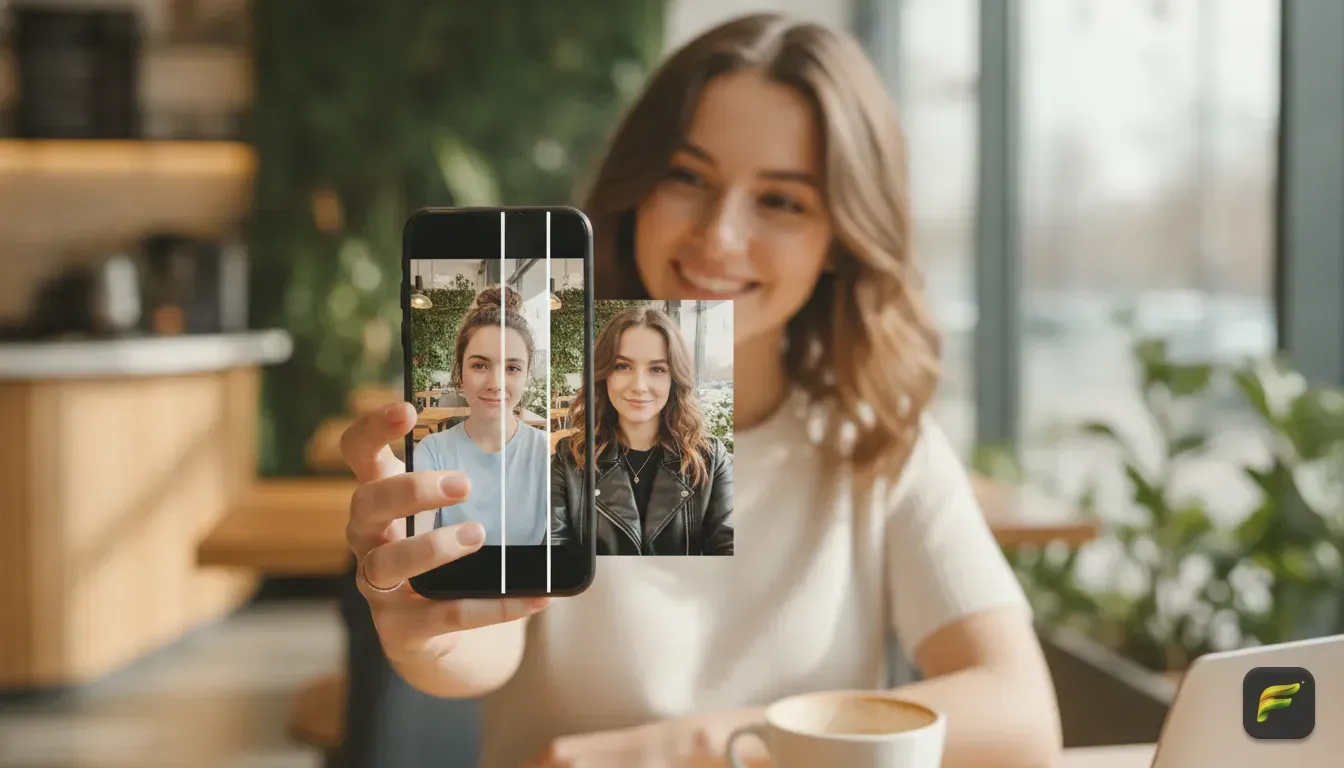
You finally nailed the selfie. The lighting hits your face just right. Your hair looks great, and your smile is actually natural.
There is just one problem. You're wearing a faded gym shirt. It completely ruins the shot for Instagram or your dating profile.
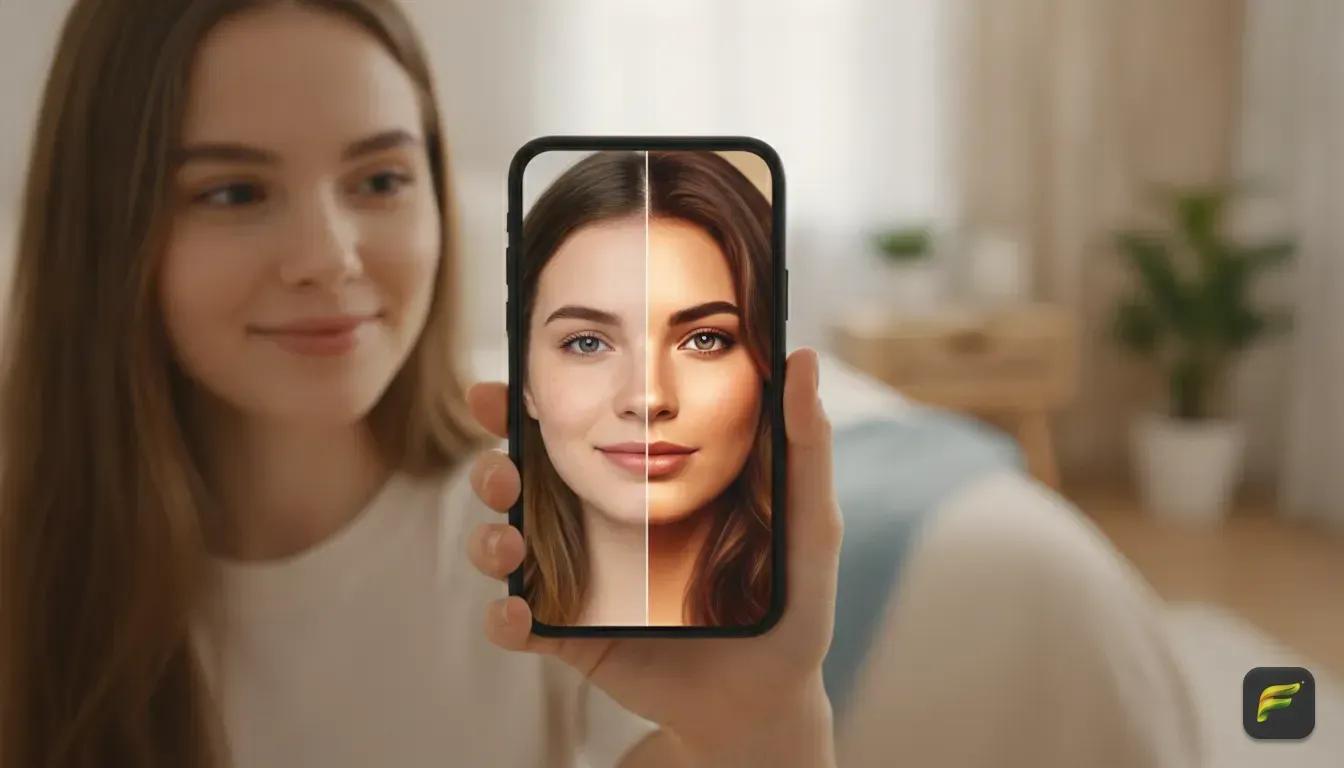
Instead of trashing the picture or chasing that exact lighting again, you can fix it. Knowing how to change your outfit in a photo with an AI editor saves you so much time. We use this trick constantly in the studio.
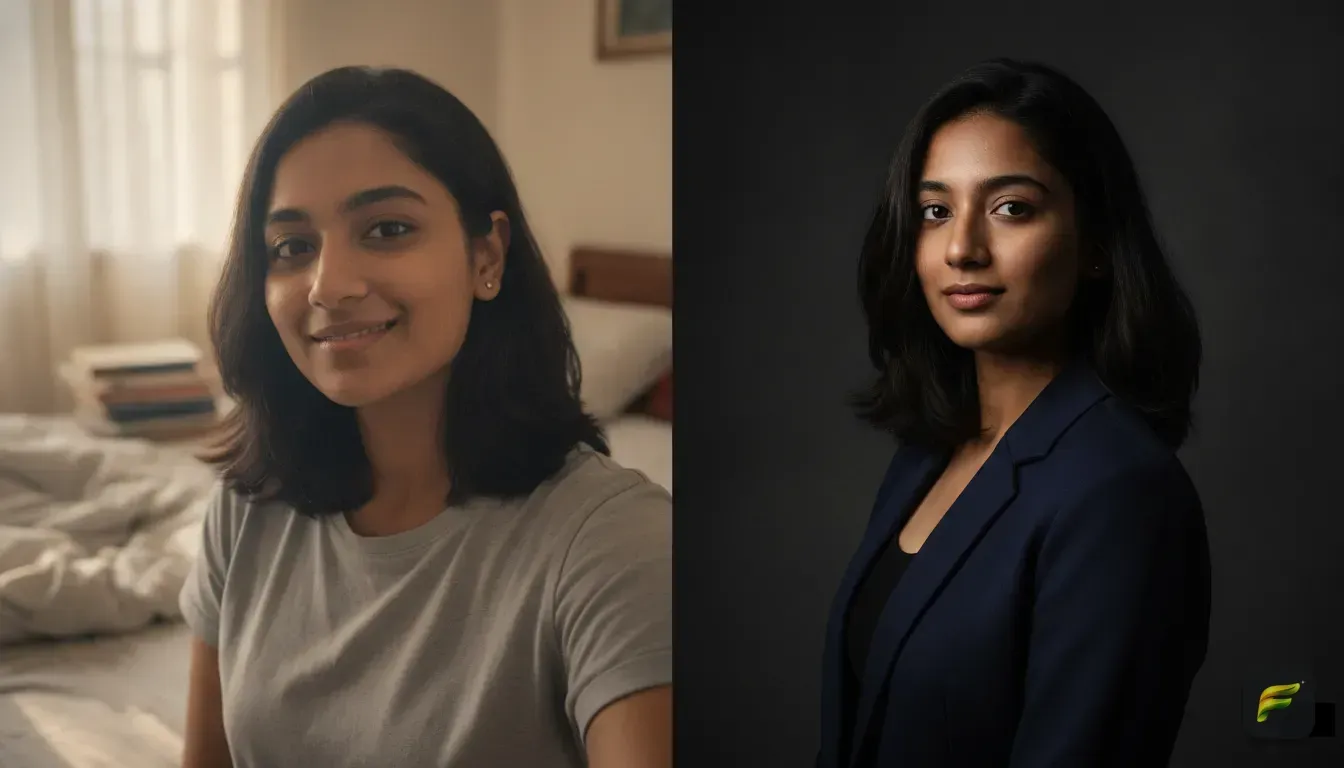
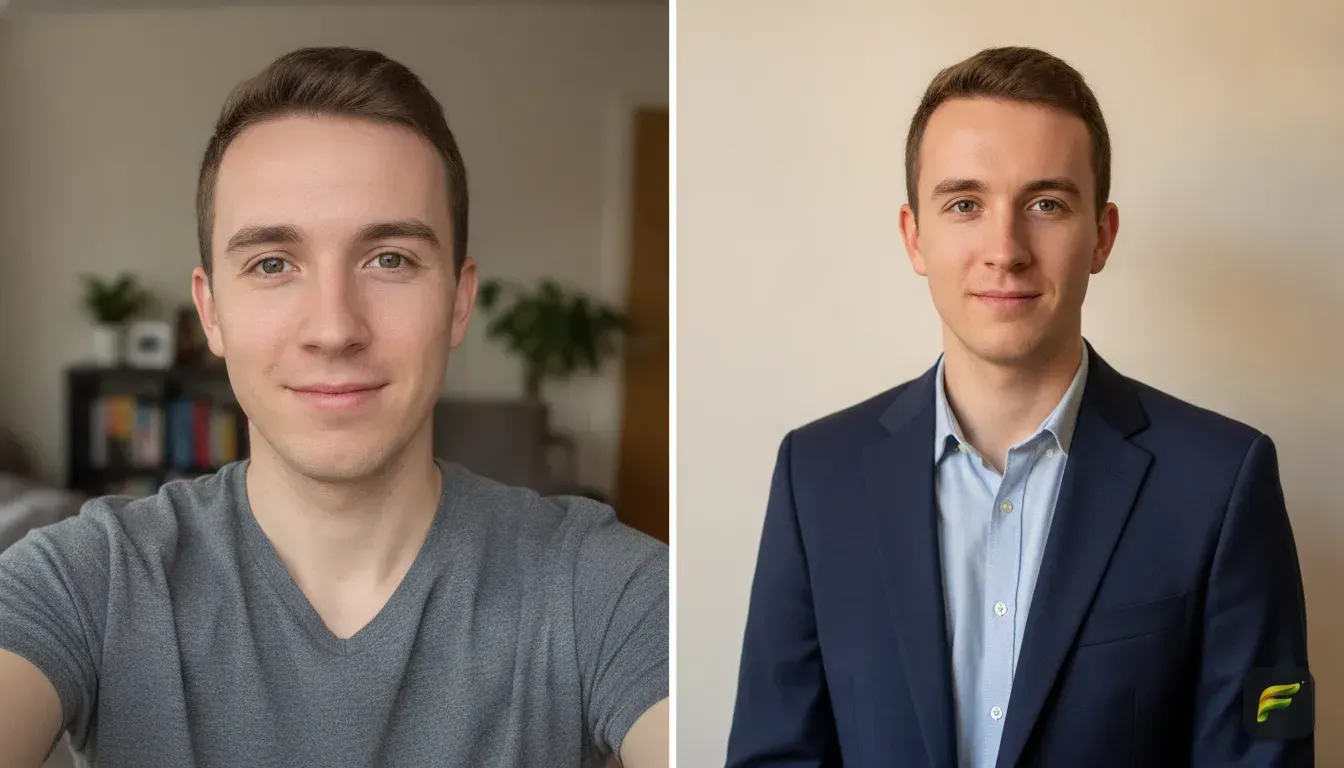
You can swap your clothing entirely while keeping your face and expression exactly the same. Let's walk through how to do this, the best photos to use, and the exact text prompts that get realistic results.
Why You Should Edit Outfits Using AI
Swapping clothes in a photo used to take expensive software, hours of free time, and serious technical skills. We used to mask out old clothes by hand and just hope the new textures looked believable. Now, AI does the heavy lifting for you.
Save Your Best Selfies
We all have photos buried in our camera roll where we look fantastic. The outfit just doesn't match the occasion. Maybe you want to use a vacation selfie for LinkedIn, but a swimsuit won't cut it.
An AI photo editor lets you swap that beachwear for a smart blazer or a crisp button-down shirt. You keep the great smile.
Test Out New Styles Before Buying
AI photo edits aren't just for social media. They're highly practical tools for your real wardrobe.
If you normally wear dark colours and want to test out a bright yellow summer dress or a streetwear hoodie, just generate it on your own photo. You'll see exactly how different necklines, colours, and fabrics look on your body before spending money online. We often use this to test out studio wardrobe concepts.
How to Choose the Perfect Base Photo
The secret to a great AI edit happens before you even open the app. The AI needs a solid foundation. If you feed it a dark, blurry image, it struggles to see where your body ends and your clothes begin.
Follow these rules for picking a great base image:
- Look for clear, even lighting: Photos taken facing a window during the day are perfect. The AI needs hard, visible edges around your current clothes.
- Avoid baggy or oversized clothes: If you're wearing a massive winter coat, the AI assumes your body is that wide. If you ask it to change the coat to a tight tank top, your proportions will look weird. Start with form-fitting clothes when you can.
- Keep your hands away from your clothes: If your hands are crossed or resting in your pockets, the AI struggles to generate new fabric around your fingers. Keep your arms relaxed at your sides. This is a mistake we see all the time.
- Ensure your hair isn't blocking the outfit: Long hair draped over your shoulders confuses the AI when it draws a new collar. Tuck your hair behind your ears or tie it back for the best results.
If you want more details on selecting that starting image, check out our guide on how to choose the right photo for an AI virtual try-on.
Step-by-Step Guide to Changing Your Outfit
Ready to try it out? You can do this entirely on your phone without bulky software. We'll use Fotorra AI for this guide since it's built specifically for this task.
It offers curated templates for one-tap edits and handles custom prompts well. Most importantly, it keeps your face exactly the same.
Here is how you do it:
- Upload your chosen photo: Open Fotorra AI and sign in with Google. Upload the base photo you selected. The app is private by design. Your uploads are only used to make your edit and are never fed into external AI training models.
- Choose a template or use a prompt: Fotorra AI has a Girl's Closet feature along with cinematic templates. Just tap a style if you see one you like. If you want something specific, use the Custom Prompt feature.
- Describe the new look clearly: Be descriptive about the fabric, color, and style. We'll share some strong examples you can copy below.
- Generate and save: Hit generate and wait a few seconds. The AI will read your prompt, analyze your photo, and swap the outfit. Save it directly to your phone if you like the result. It's ready to post.
5 AI Photo Editing Prompts You Can Copy Right Now
Writing a good prompt is half the battle. If you just type "red shirt", the AI might spit out a formal blouse, a sports jersey, or a heavy wool sweater. You need to be specific.
Here are five prompts you can copy and paste right into the editor. For more ideas on crafting these, read our post covering 5 AI photo editing prompts that keep your face natural.
1. The Casual Streetwear Look
Streetwear is very forgiving and always looks good. It's ideal for a relaxed, trendy vibe on your Instagram feed.
Copy this prompt: "Wearing an oversized vintage graphic t-shirt in faded black cotton, paired with a silver chain necklace, relaxed streetwear aesthetic, natural casual draping."
2. The Cinematic Studio Turtleneck
This gives you a sleek, mysterious profile picture. It works exceptionally well if your original photo has darker, moody lighting. We use this prompt style heavily for corporate headshots.
Copy this prompt: "Wearing a fitted black ribbed knit turtleneck sweater, high quality fabric, minimalistic and elegant style, cinematic studio portrait aesthetic."
3. The Vintage 90s Denim
The 90s aesthetic remains huge right now. Denim jackets add excellent, believable texture to AI edits.
Copy this prompt: "Wearing a light blue washed vintage denim jacket over a plain white cotton t-shirt, retro 90s fashion style, casual and stylish."
4. The Ethnic Festive Vibe
If wedding season is coming up and you need a quick festive picture, AI handles intricate traditional wear beautifully. You just have to specify the details.
Copy this prompt: "Wearing a luxurious deep green silk Kurta with subtle gold embroidery around the collar, elegant traditional Indian wear, rich textures."
5. The Professional Linen Suit
Need to update your professional portfolio quickly? A linen suit looks sharp but never stiff.
Copy this prompt: "Wearing a tailored beige linen blazer over a crisp white button-down shirt, smart casual business attire, modern professional look."
Common Mistakes That Ruin AI Outfit Changes
Even with a great app, things can look a bit off. If your generated photo looks weird, you probably made one of these common mistakes. We've made them all ourselves.
Overloading the Prompt
Don't ask the AI to do too much at once. Say your prompt is "wearing a red jacket with green stripes, blue buttons, a yellow scarf, holding a coffee cup, and wearing sunglasses." The AI will panic.
It'll blend the colours together or try to fuse the sunglasses into your shirt. Keep your prompts focused strictly on the main pieces of clothing.
Ignoring the Original Background
Suppose your original photo was taken on a sunny beach. Asking the AI to put you in a heavy snow parka looks ridiculous.
The lighting on your face will be bright and warm, while the clothes suggest freezing weather. Always match the new outfit to the environment of your original picture.
Using Heavily Filtered Base Photos
If you upload a photo covered in Instagram filters, the AI will struggle. Blurry skin textures or massive fake eyelashes distort how the software maps your face.
Always start with a raw, unfiltered photo from your camera roll. You can add fun filters after you change the clothes.
Ready to Update Your Profile?
Learning how to change your outfit in a photo with an AI editor gives you total control over your online presence. You no longer have to worry about outfit repeating. You definitely don't need to organize a massive photoshoot just to get a few new profile pictures.
Start by finding one clear, well-lit selfie on your phone today. Pick one of our custom prompts, paste it into your app, and see how a simple wardrobe change transforms your picture.
It's quite addictive. Once you try it, you'll never look at your camera roll the same way again.
Frequently asked questions
Can I change my outfit in a photo without changing my face?
Yes. Modern AI photo editors like Fotorra AI are specifically designed to keep your facial features exactly the same while only altering the clothing and body area you specify.
What kind of clothing works best for AI outfit changes?
Starting with form-fitting, plain clothing works best. Baggy clothes or thick winter coats can confuse the AI about your actual body shape, making the new generated outfit look out of proportion.
Are my photos kept private when using AI editors?
It depends on the app you use. Fotorra AI is private by design, meaning your photos are used only to generate your requested edit and are never saved to train public AI models.
Do I need to know how to use Photoshop to change clothes in a photo?
Not anymore. You do not need any technical editing skills. You simply upload your photo, type a text description of the clothes you want to wear, and the AI does all the masking and editing for you.

Try it yourself
Fotorra AI
Transform photos instantly with AI.