How to Get a Cinematic Photo Edit From an Everyday Selfie Using AI
Turn your basic selfies into moody movie stills. Learn how to use AI tools and custom prompts to get a dramatic, professional look in seconds.
 DevForge Studio
6 min read
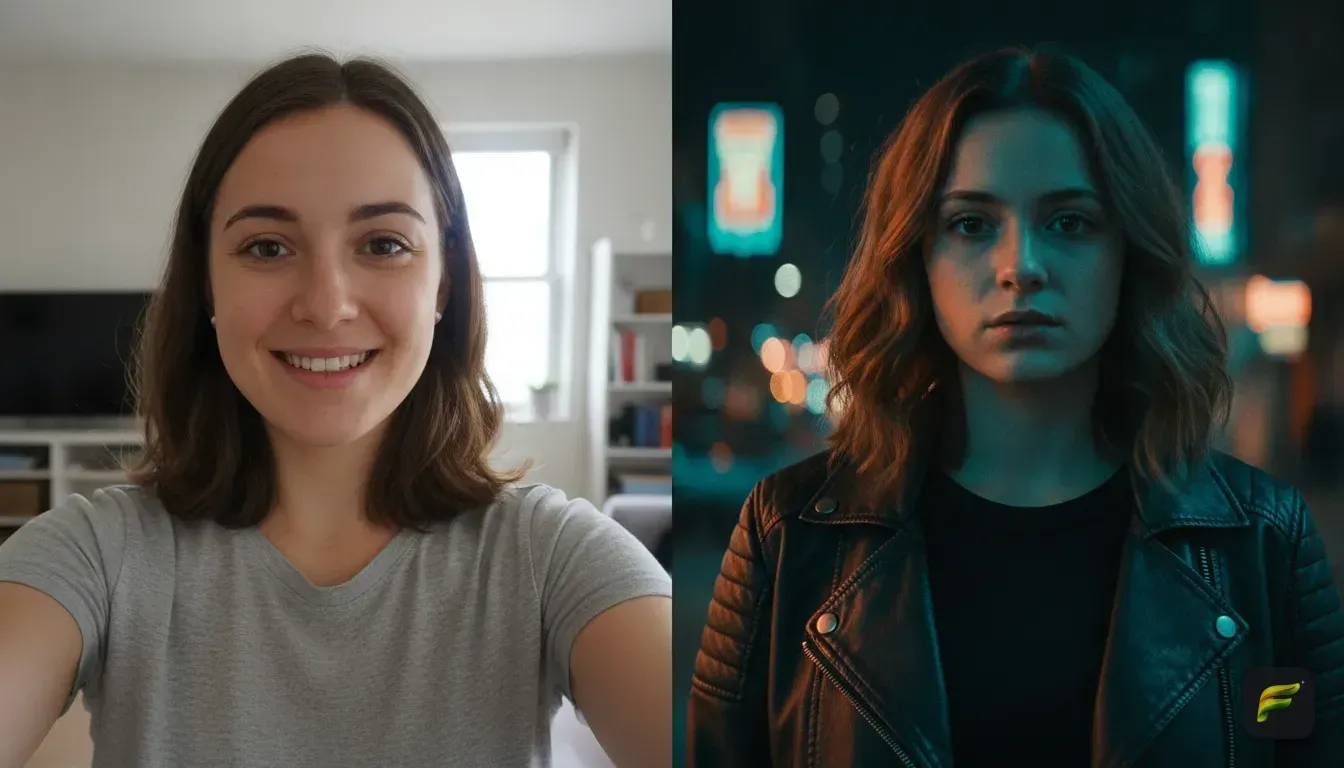
You just took a selfie in your bedroom. You want it to look like a still from a high-budget movie. Getting that moody, professional look used to mean expensive gear and hours nudging colour sliders.
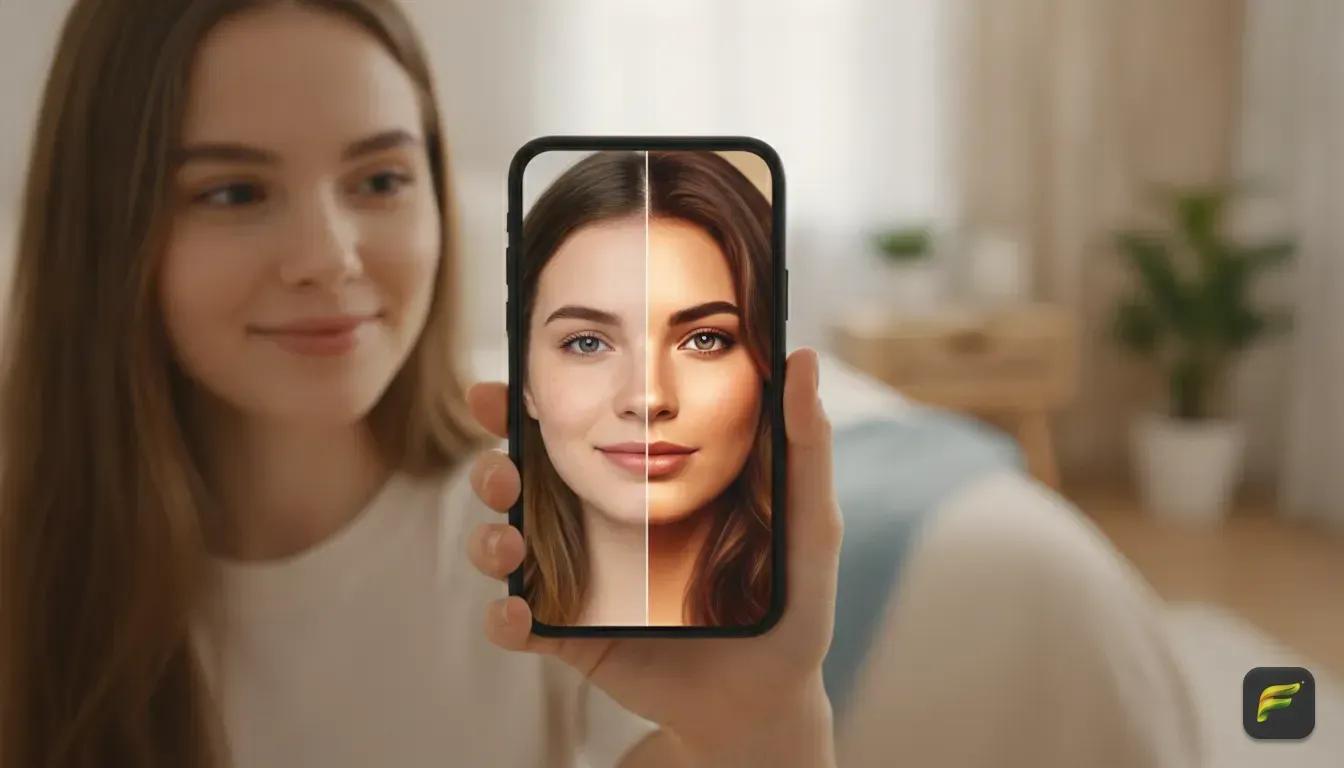
Now, you can learn How to get a cinematic photo edit from an everyday selfie using AI right on your phone. We'll show you exactly how to turn a standard photo into a dramatic portrait for your feed. You don't need complicated editing software.
You just need a clear face shot, a solid app, and a basic eye for movie styling. Let's walk through the steps to get it right on the first try.
What exactly makes a photo look cinematic?
Movies look different from everyday photos. It isn't just about slapping a dark filter on your picture and calling it a day. Cinematic shots actually share a few very specific traits.
First, they use dramatic lighting. Think of heavy shadows covering half a face or bright neon glowing from the side. Second, the background usually blurs out.
This blur pulls all the attention right to the subject. The colours are also styled with clear intent. A popular cinematic style uses contrasting teal and orange tones, while a vintage photo edit AI might use faded greens and warm yellows.
Finally, the outfit and setting matter. A plain t-shirt against a white wall looks completely flat. A thick winter coat under a foggy street lamp looks like a thriller.
AI tools can build these elements for you. They just need the right starting point.
Step 1: Take the perfect base selfie for AI
AI tools are smart, but they need good raw material. If you feed the app a blurry, heavily filtered picture from a dark room, the result will look artificial. Give the AI a clear map of your face.
Lighting is everything
Stand facing a window. Natural, soft light hitting your face evenly gives the AI a perfect read of your features.
Harsh overhead lighting creates terrible shadows under your eyes, so avoid it entirely. Never stand with the window behind you.
Keep your face clear
Take off large sunglasses or heavy hats. You want the AI to capture your exact likeness. Keep your expression neutral or slightly moody to match the cinematic vibe.
Give the AI some space
Frame the shot from your chest up. If your face eats up the entire frame, the AI has no room to generate a cool background or outfit. Leaving empty space around your shoulders gives the app room to build the scene.
Step 2: Choose a one-tap cinematic photo edit
If you want immediate results, the easiest route is using ready-made styles. This is exactly where an AI portrait generator from photo comes in handy. Try our app, Fotorra AI.
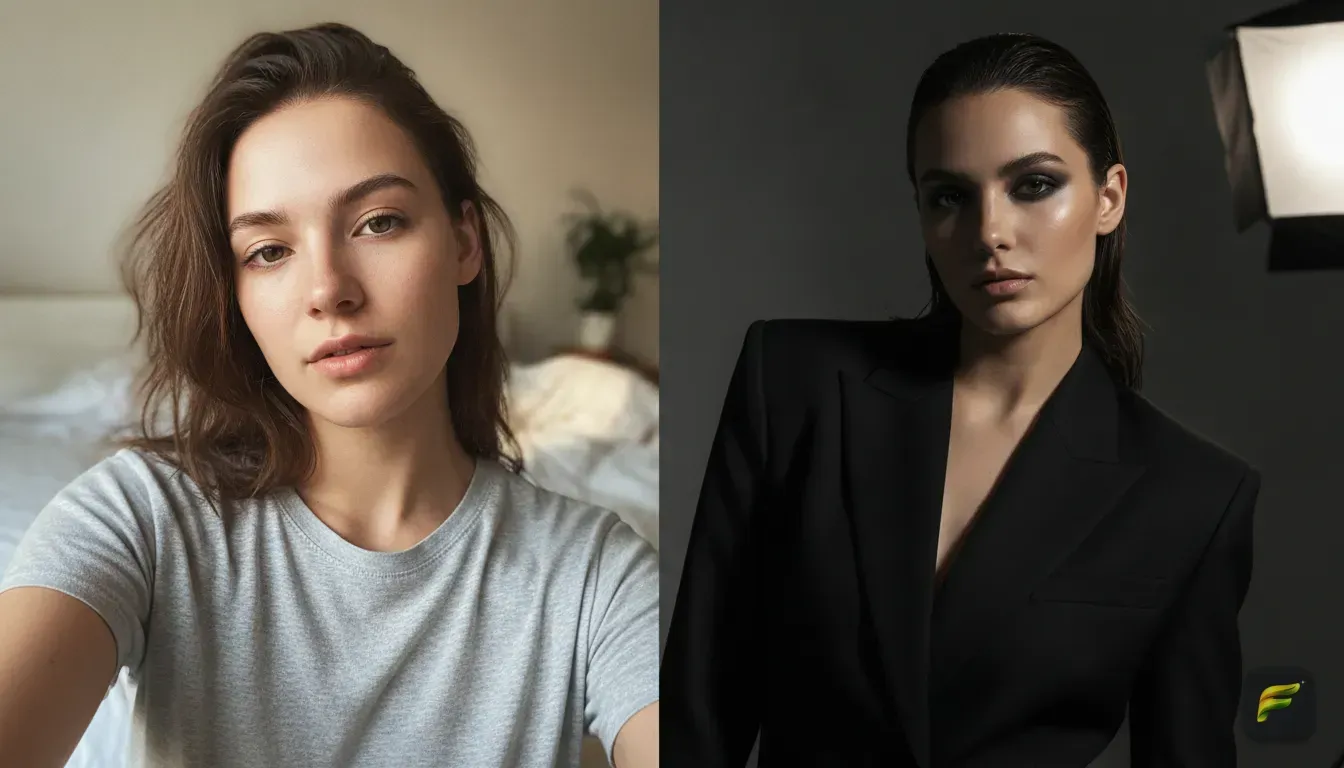
We built curated templates specifically for this exact movie look. Just upload your clear selfie and tap a template like 'Cinematic studio' or 'Paris Afternoon'. The app reads your facial features while keeping them completely intact.
It then swaps the lighting, background, and overall vibe in seconds. Your edited photos save directly to your phone. We never use your uploads to train AI models, so your private photos stay totally safe.
Step 3: Write custom AI photo editing prompts
Templates are great for speed. Writing your own ai photo editing prompts gives you total control. If you have a specific movie scene in mind, just describe it.
Be highly specific. Mention the exact lighting, camera style, location, and mood you want. Here are five cinematic prompts you can copy and paste right now:
- Neon Cyberpunk City: A cinematic portrait of a person standing in a futuristic Tokyo street at night, illuminated by bright pink and blue neon lights, blurry rain in the background, sharp focus on the face, 8k resolution, highly detailed.
- Moody 90s Film: A vintage 1990s movie still of a person sitting in a dimly lit diner booth, drinking coffee, warm yellow and faded green tones, film grain, soft focus, dramatic shadows.
- Golden Hour Romance: A soft, cinematic portrait during golden hour in a grassy field, warm sunlight hitting the side of the face, lens flare, blurry trees in the background, ethereal and dreamy mood.
- Dark Thriller Detective: A dramatic black and white cinematic shot of a person wearing a trench coat standing under a flickering street lamp in the fog, high contrast, moody shadows, mysterious vibe.
- High Fashion Studio: A cinematic studio portrait, dramatic spotlight on the face, dark grey background, sharp shadows, editorial fashion photography style, ultra-realistic.
Step 4: Change your outfit and background
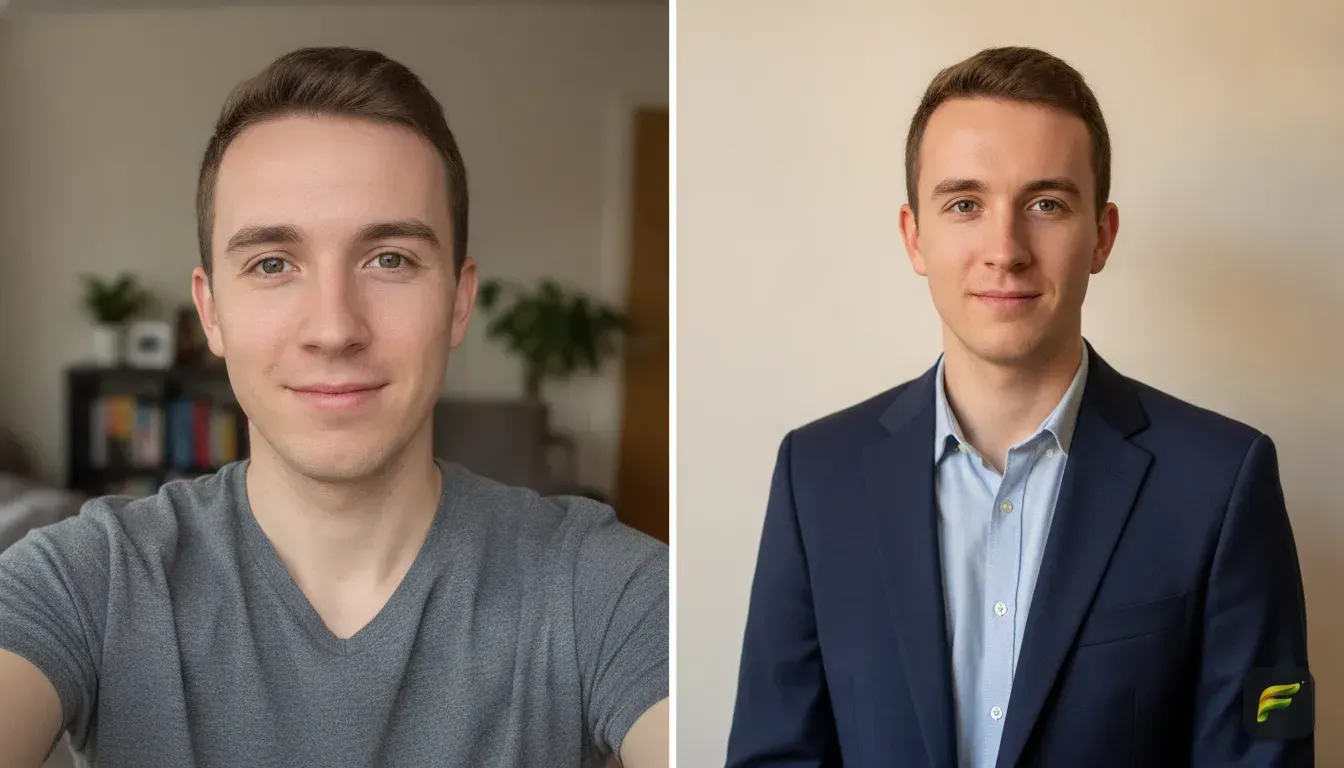
A cinematic shot requires a cinematic wardrobe. You might be wearing pyjamas in your base selfie. We recommend using a tool to change outfit in photo ai to fit your visual story.
Describe the clothing clearly in custom prompts. Ask for a heavy winter coat with a fur hood for a snowy scene. Request a sleek tailored suit for a secret agent vibe.
The AI lets you try a new hairstyle and outfit while your face stays exactly the same. You get to test out a totally new look. It happens before you ever buy those clothes in real life.
Ideas for your next profile picture or post
Now that you have these edits, where should you actually use them? A trending ai photo edit makes a fantastic profile picture. It stands out significantly more than a standard bathroom mirror selfie.
- Instagram Reels Covers: A cinematic still of your face makes a highly clickable cover image for short videos. Check out these trending Instagram photo edit ideas for eye-catching reels covers for inspiration.
- Dating Profiles: A professional-looking shot makes your dating profile far more appealing. Keep the edit subtle enough that it still looks exactly like you.
- Aesthetic Grids: Run a moody Instagram account? Use ai filters for selfies to ensure your face fits the overall colour palette of your grid.
Common mistakes to avoid when using AI photo styles
Translating your aesthetic photo edit ideas to the screen takes a little trial and error. Avoid a few common traps to get better results on day one.
First, skip the group photos. Always use a solo shot. AI models easily get confused by multiple faces, which leads to weird, morphed features.
Second, don't overcomplicate your prompt. Keep your descriptions incredibly focused. If you ask for ten background details at once, the AI loses focus on your face.
Finally, don't ignore your selfie's original lighting. If your base photo has harsh sunlight, asking for a dark basement scene usually looks unnatural. Try to match the prompt's mood to the original lighting direction.
Look at where the light falls. If the light hits the right side of your face in the original picture, ask for a bright neon light on the right side in your prompt.
Your next move: Post your movie-star portrait
Making a standard photo look like a movie still takes very little effort now. You don't need a film crew or a professional studio. Start by finding a window with good natural light.
Take a clean shot of your face from the chest up. Pick a mood. You can use a one-tap template or write a detailed custom prompt about rainy streets.
Either way, you'll create something totally unique in seconds. Grab your phone, download a solid editor, and turn your latest selfie into your new favourite profile picture.
Frequently asked questions
What is the best AI photo editor app for cinematic styles?
Fotorra AI is a great option because it offers one-tap curated templates like 'Cinematic studio' alongside the ability to write custom prompts. It also keeps your face completely intact while changing the lighting and background.
Can I change my clothes in a photo using AI?
Yes. Many AI photo editors allow you to describe a new outfit in a text prompt. The app will replace your original clothing with the new style while keeping your face unchanged.
Why do my AI edited photos look artificial or weird?
This usually happens if your base photo is blurry, too dark, or taken too close to your face. For the best results, use a clear, chest-up selfie taken in bright natural light with no existing filters.
Are AI photo editor apps safe to use with my personal photos?
It depends on the app's privacy policy. Look for apps like Fotorra AI that are private by design, meaning your uploads are only used to create your edit and are never used to train global AI models.
Try it yourself
Fotorra AI
Transform photos instantly with AI.