Change Outfit in Photo AI: How to Rescue a Great Selfie With the Wrong Clothes
Did you capture the perfect smile while wearing a faded t-shirt? Learn how to change your clothes in any photo using simple AI text prompts.
 DevForge Studio
7 min read
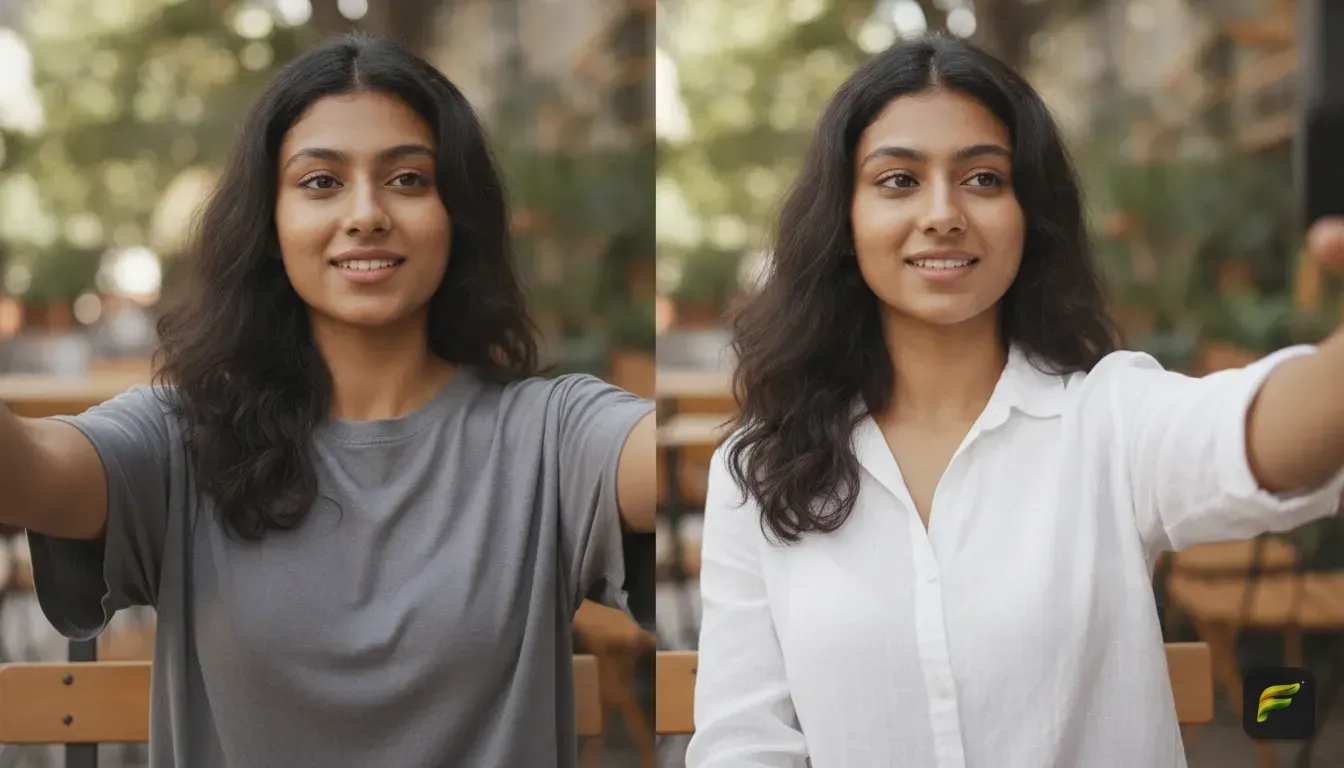
You just snapped the perfect selfie. The golden hour lighting hits your face right. Your hair looks amazing, and your smile is entirely natural. But then you look at what you're wearing.
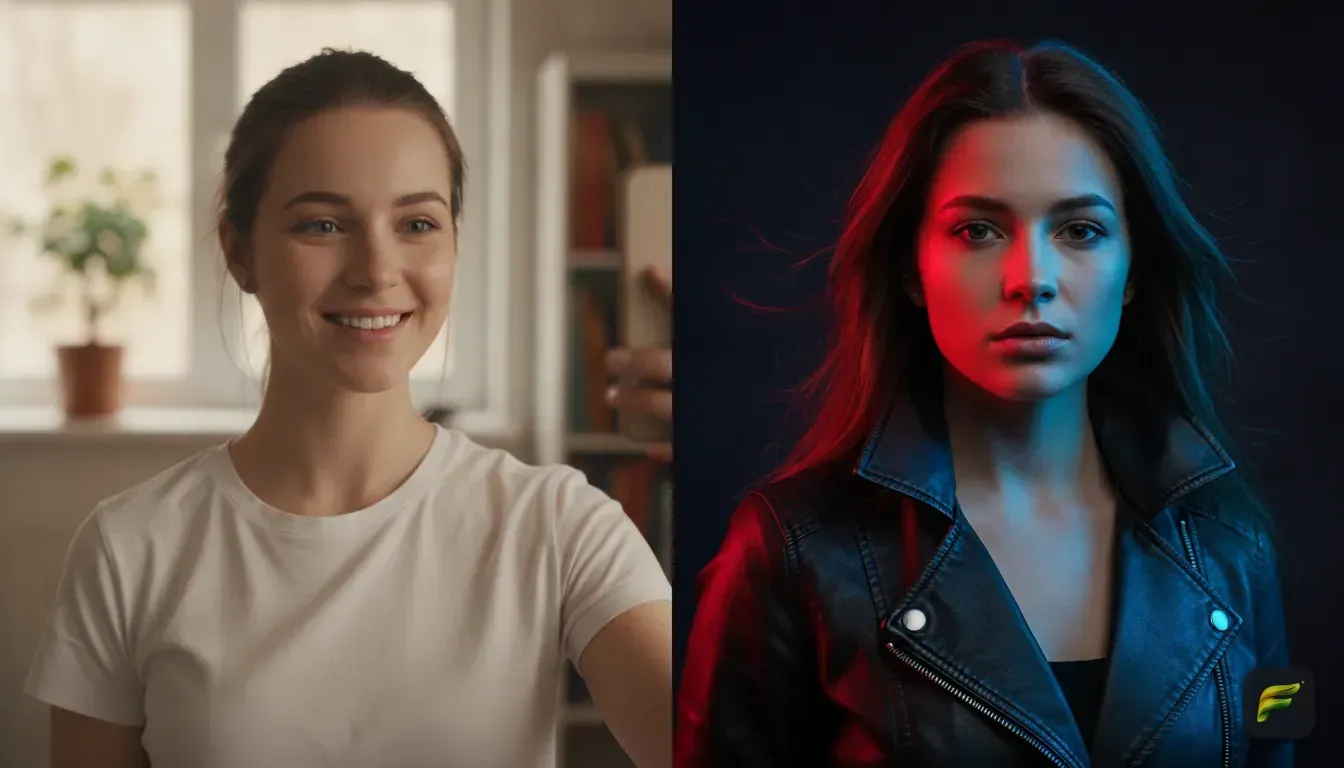
That old, faded pyjama top ruins the shot. Don't delete the picture. You can use a tool to change outfit in photo AI while keeping your face and expression exactly the same.
We've all been there. Fixing a bad outfit is much easier than recreating a genuine smile, pose, and lighting. Retaking the photo almost never works.
By the time you change into a nice shirt, the sun has moved. The lighting goes flat, and your smile looks forced. Using an AI photo editor lets you keep the original moment while upgrading your wardrobe.
Why Keep the Selfie and Swap the Clothes?
Sometimes a photo just captures your true personality. Your eyes look bright, and the angle is incredibly flattering.
These rare shots happen when we're relaxed. That usually means we're wearing our most comfortable, least photogenic clothes.
You might need that photo for a specific reason. A great headshot taken in a hoodie won't work for your LinkedIn profile. A candid picture of you at home might look too messy for a dating app.
A quick AI outfit swap gives you professional or trendy results instantly. You save the money of a studio shoot and avoid taking hundreds of forced selfies.
This also saves time when you want to try out new aesthetics. If you're experimenting with aesthetic photo edit ideas for your next Instagram photo dump, you can test different vibes. Try vintage grunge or soft pastel without buying new clothes.
What Makes a Good Input Photo for AI Clothing Swaps?
AI tools need good input to give you a natural result. If you feed the AI a blurry photo, the new outfit looks pasted on. Make sure your selfie meets a few basic rules.
1. Keep a Clear Neckline
The AI needs to understand where your neck ends and your clothes begin. We see this fail often when users wear bulky scarves, heavy turtlenecks, or tight hoodies. The AI will struggle to generate a clean open collar over them.
The best input photos feature simple, lower necklines like a crew neck t-shirt or tank top. This gives the AI plenty of room to draw a new collar.
2. Watch Your Hand Placement
Avoid selfies where your hands rest on your chest or cross over your clothes. If your hand covers part of your shirt, the AI has to guess how to weave fabric around your fingers.
This usually causes warped hands or messy folds. Choose a photo where your hands are by your sides or holding the phone out of the frame.
3. Find Even Lighting
Lighting is everything in photo editing. If your input photo has harsh shadows covering half your torso, the AI gets confused. It might read those shadows as part of the clothing pattern.
Soft, natural lighting from a window or outdoor shade works best. The AI will read the light and match the highlights on your new outfit. This makes the texture look highly realistic.
How to Change Outfit in Photo AI (Step by Step)
Changing your outfit only takes a minute with the right app. We built Fotorra AI exactly for this reason.
We wanted a tool that lets you try a new style in seconds. Most importantly, it keeps your face completely untouched.
Here's how you do it:
- Upload a clear photo: Open Fotorra AI and select the selfie you want to rescue. Remember the rules above about clear necklines and good lighting.
- Choose your method: Tap one of the curated templates, like the 'Girl's Closet' or 'Cinematic Studio'. You can also use the Custom Prompt feature to describe exactly what you want.
- Write your prompt: If you use a custom prompt, type in the specific clothing items you want to wear. Be descriptive.
- Generate and save: The app processes your request. Your face remains exactly the same, but your clothes are upgraded. The photo saves directly to your phone.
Fotorra AI is private by design. Your uploads are only used to make your edit and are never used to train AI models. You can safely upload personal selfies without worrying about your data.
The Secret Formula for Great Clothing Prompts
Telling the AI to "make me wear a nice shirt" is too vague. Vague prompts lead to random results.
To get exactly what you want, we recommend a simple formula for your requests.
Fit + Material + Colour + Style + Extra Details
Instead of "a nice shirt", try "a slim fit, silk, emerald green evening blouse with silver embroidery". This gives the AI strict instructions. It forces the system to render sharp, realistic textures.
5 AI Prompt Ideas to Try Right Now
If you aren't sure where to start, copy and paste these exact prompts into Fotorra AI. Watch how they transform your photo.
1. The Clean Corporate Look
Prompt to copy: 'A tailored, charcoal grey wool blazer over a crisp white cotton button-down shirt, formal office wear, clean and professional.'
This is perfect if you need to turn a casual weekend selfie into a profile picture. It works great for a job hunt or professional networking site.
2. Traditional Indian Wedding Guest
Prompt to copy: 'A luxurious deep maroon velvet sherwani with intricate gold zari embroidery, traditional Indian festive wear, regal and elegant.'
Want to see how you look in heavy ethnic wear before shopping? This prompt gives you rich textures and festive vibes.
3. The Parisian Afternoon
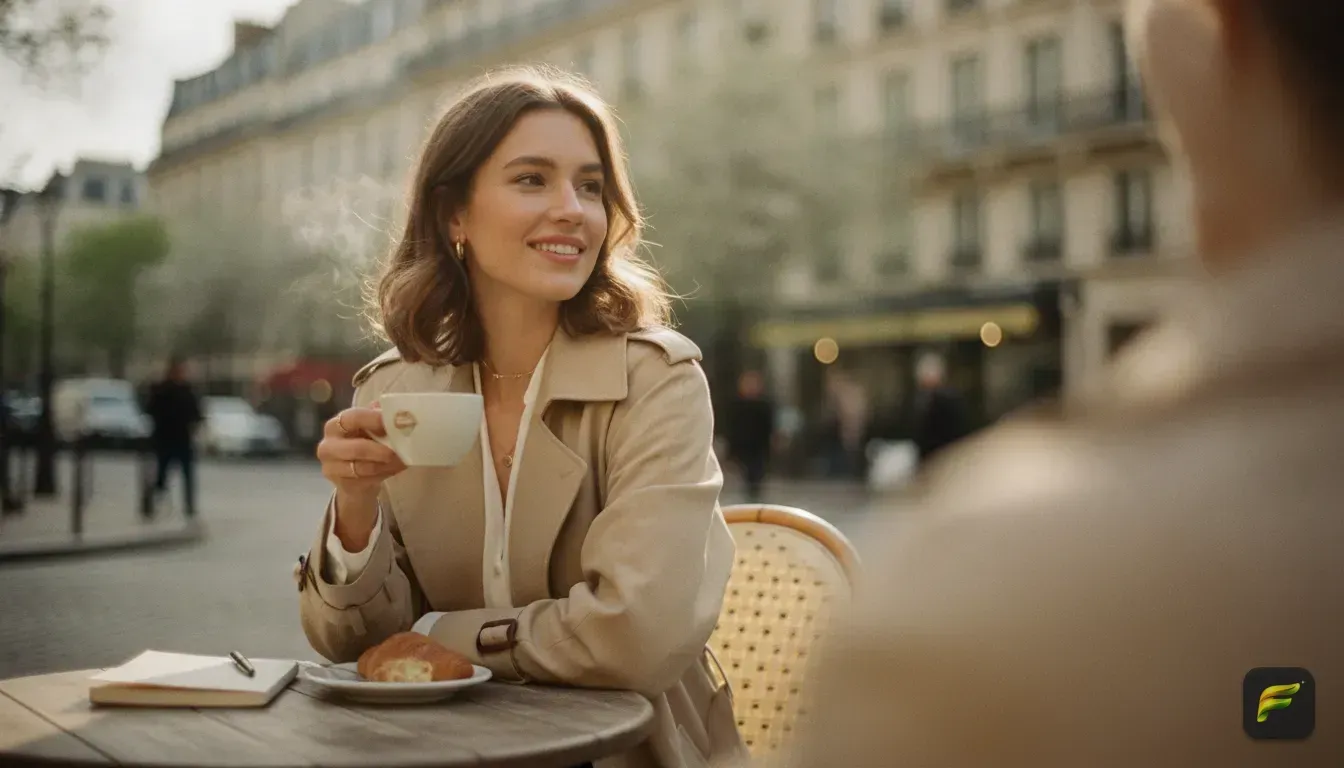
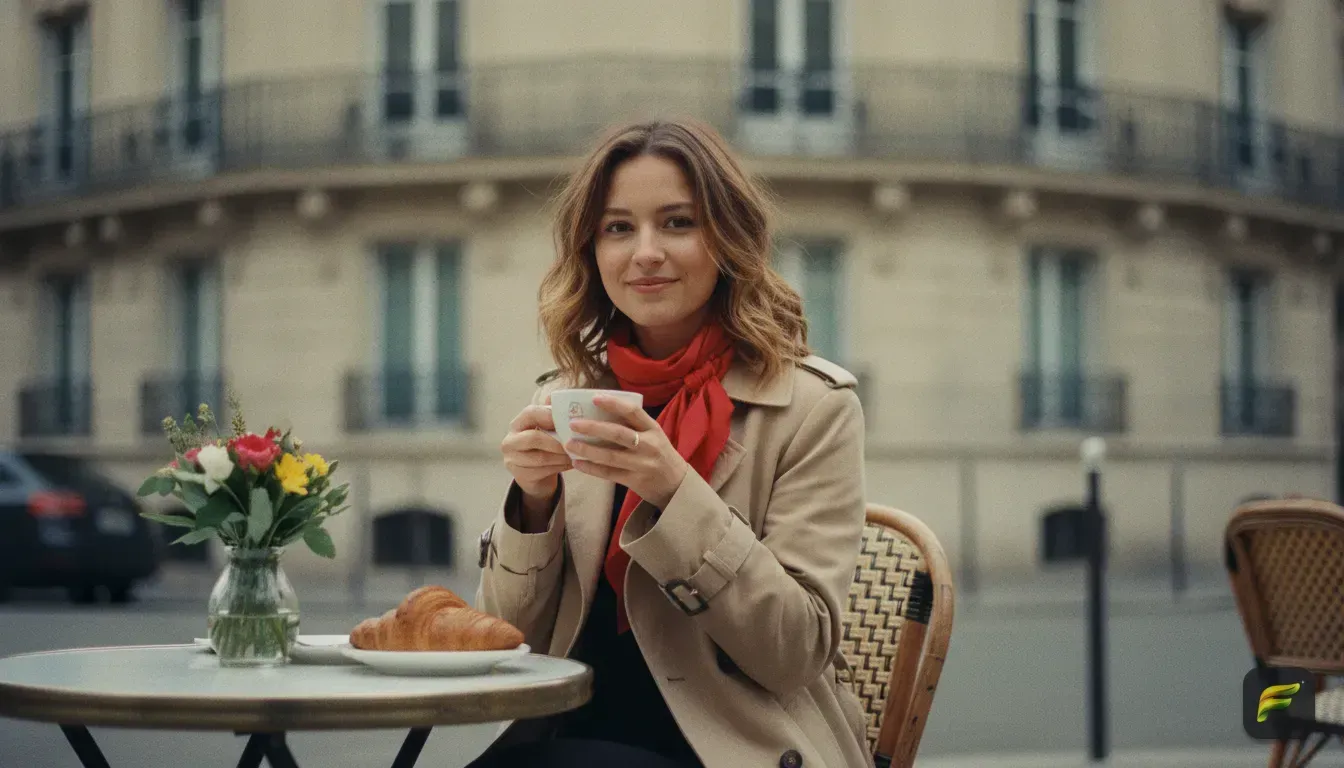
Prompt to copy: 'A soft beige trench coat worn open over a black and white striped cotton long-sleeve top, casual Parisian streetwear chic.'
This works beautifully for outdoor selfies. It adds layers and structure to your outfit, making you look effortlessly put together.
4. Vintage 90s Grunge
Prompt to copy: 'A faded, oversized black leather biker jacket over a vintage band t-shirt, edgy 90s streetwear style, worn textures.'
Leather is one of the best materials to generate with AI. The lighting reflections just look incredibly realistic. It gives your photo a cool, cinematic edge.
5. Cosy Winter Knits
Prompt to copy: 'A chunky, oversized cream cable-knit wool sweater, soft winter fashion, relaxed and comfortable.'
This is excellent if you're trying to plan your vacation wardrobe with an AI outfit changer app. You can see how bulky winter clothing suits your frame before packing your bags.
Fixing Weird Results and Common Errors
Even the smartest AI needs a little guidance sometimes. If your first generation looks strange, don't panic. Small adjustments fix almost any issue.
- The fabric looks flat and cartoonish: This happens when you don't specify a material. The AI defaults to a generic smooth texture. Always add words like denim, silk, linen, wool, or leather to force realistic fabric grains.
- The outfit doesn't match the background: If your original selfie was taken on a sunny beach, putting yourself in a heavy winter coat looks strange. The lighting won't make sense. Try to match the season of your new outfit to your background.
- The collar looks messy: The AI might be confused by the shirt you originally wore. If it had a high collar, the AI tries to blend the new shirt right into it. The easiest fix is trying a different base photo with a lower neckline.
Keep Your Style Matching Your Surroundings
A great AI edit feels invisible. People should just think you bought a fantastic new outfit. Pay attention to colour theory.
If you're standing in a forest with lots of green leaves, asking the AI for an earthy brown jacket looks natural. A mustard yellow sweater works well too. It blends far better than a neon pink suit.
Think about the overall mood of the photo. If it's a moody, dimly lit room, ask for rich fabrics like velvet or dark denim.
If it's a bright outdoor selfie, ask for light, breezy materials like linen or cotton. Matching the mood of the clothes to the environment makes the edit look real.
Your Next Step to a Better Profile Picture
You no longer have to delete a great photo just because of an old t-shirt. With simple prompts and a clear base photo, you carry a limitless wardrobe right inside your phone.
Grab that perfect but poorly styled selfie from your camera roll. Try applying the Clean Corporate Look or the Cosy Winter Knits prompt.
Experimenting with different styles only takes a few seconds. You might just find the perfect new look for your main profile picture.
Frequently asked questions
Can AI change clothes in a photo without altering my face?
Yes. Tools like Fotorra AI are specifically built to keep your facial features, skin tone, and expression exactly the same while only replacing the clothing in the image.
What is the best way to write an AI clothing prompt?
Use a clear formula that includes the fit, material, colour, and style. For example, typing 'a loose-fit, black silk button-down shirt' will give you much more realistic results than just typing 'a nice shirt'.
Why does my new AI outfit look fake or pasted on?
This usually happens if the lighting on the new clothes does not match your photo's background, or if you did not specify a fabric material. Adding words like 'denim', 'wool', or 'leather' helps the AI generate realistic textures.
Is it safe to upload my personal selfies to an AI outfit app?
It depends on the app you use. Fotorra AI is private by design, meaning your uploads are only used to make your specific edit and are never saved or used to train AI models.

Try it yourself
Fotorra AI
Transform photos instantly with AI.